

Configuring Pace Payment Processor in Our School
Go to Admin>Account Admin
•Create an “other asset” type account to hold funds until deposit
Name how you prefer i.e. Holding Pace Funds
•Create a “revenue” type account for web store convenience fee’s
This account will hold the convenience fee’s
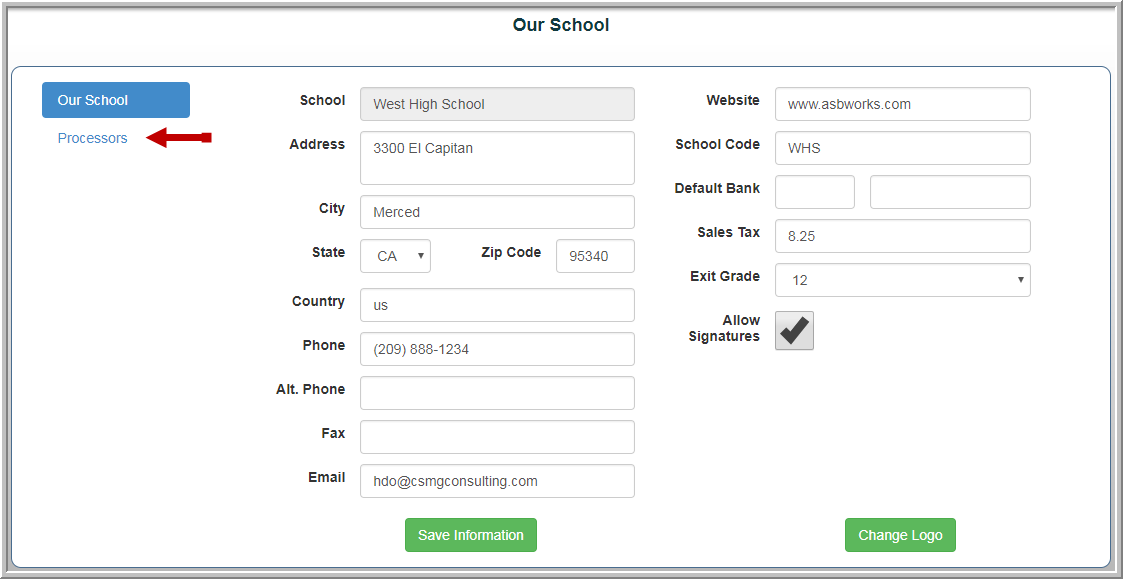
Go to Our School
• Select the Payment Processor button
•Click the add new button

•Select Pace from the Processor dropdown

• Select how you will be using Pace by checking the boxes for POS and or Web Store
• Enter Token provided by Pace
• Choose your new “other asset” account created for undeposited funds account
• Select your merchant account – “bank account”
• Select your new convenience fee account “if” using the web store only
• Save

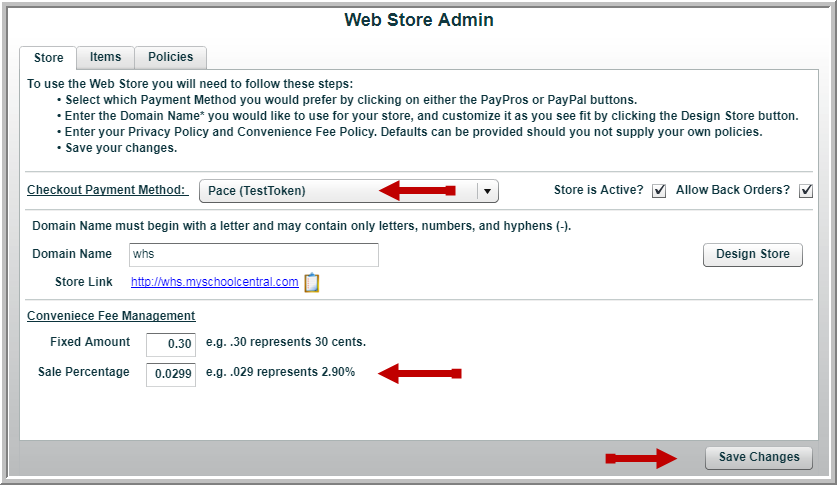
Web Store Admin
Select Checkout Payment method: Pace
Configure Web Store Admin
Save Changes
Copyright © 2010-2019 ASBWorks™